

简介
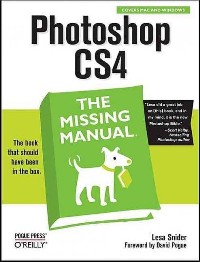
Photoshop is the world's most widely used photo-editing and graphics program. But with all its fantastic new features and options, the CS4 version can bewilder even the most seasoned professional. That's where "Photoshop CS4: The Missing Manual" comes in: packed with tips, tricks, and lots of practical advice, this visually rich four-color guidebook teaches you everything you need to know to edit photos and create beautiful documents in Photoshop. Whether you're an absolute beginner or a power user ready to try some advanced techniques, author and graphics pro Lesa Snider King offers crystal-clear, jargon-free instructions to help you take advantage of these powerful tools -- not only "how" they work, but "when" you should use them. You'll quickly get up to speed on new CS4 features such as: Photoshop's completely revamped workspace Smoother image display and quick zoom, including the new pixel grid view New Masks and Adjustments panels The Vibrance adjustment layer Hand-painting adjustments and using graduated filters in Camera Raw Enhanced Adobe Bridge And much more. You'll also find out which features work well, and which aren't worth your time. Written with the clarity, humor, and objective scrutiny that are hallmarks of the Missing Manual series, "Photoshop CS4: The Missing Manual" is the friendly, thorough resource you need. Why settle for anything less? "Lesa did a great job on the book, and in my mind, it is the new Photoshop Bible." -- Scott Kelby, Photoshop Insider
目录
Table Of Contents:
Foreword xv
The Missing Credits xvii
Introduction 1(10)
Part One: The Basics
Photoshop CS4 Guided Tour 11(26)
Meet the Application Frame 11(6)
The Application Bar 12(1)
The Almighty Options Bar 13(1)
Swapping Screen Modes 14(1)
Customizing Your Workspace 15(2)
Working with Panels 17(7)
Using the Tools Panel 20(2)
Colors 22(1)
Swatches 22(1)
Styles 22(1)
Adjustments 22(1)
Masks 23(1)
Layers 23(1)
Channels 23(1)
Paths 23(1)
Navigator 23(1)
Histogram 23(1)
Info 24(1)
The Power of Undo 24(4)
Changing How Far Back You Can Go 24(1)
Turning Back Time with the History Panel 25(1)
The History Brush 26(2)
Revert Command 28(1)
Tweaking Photoshop's Preferences 28(6)
General 29(1)
Interface 30(1)
File Handling 30(1)
Performance 30(2)
Cursors 32(1)
Transparency & Gamut 32(1)
Units & Rulers 33(1)
Guides, Grid & Slices 33(1)
Plug-ins 33(1)
Type 34(1)
The Preset Manager 34(3)
Sharing Presets 35(2)
Opening, Viewing, and Saving Files 37(32)
Creating a New Document 37(8)
Photoshop's Ready-Made Documents 39(1)
Setting Size and Resolution 39(1)
Choosing a Color Mode 40(2)
Choosing Your Background 42(1)
Advanced Options 42(3)
Saving Files 45(2)
File Formats 46(1)
Opening an Existing Document 47(8)
The Open Dialog Box 49(1)
Opening Files as Smart Objects 50(1)
Opening Recent Files 50(1)
Working with PDFs 51(1)
Working with Scanned Images 51(2)
Working with Raw Files 53(1)
Duplicating Files 54(1)
Changing Your Image View 55(7)
Zooming In and Out 55(4)
Moving Around in Your Image 59(1)
Zooming with the Navigator Panel 60(1)
Rotating Your Canvas 61(1)
Arranging Open Images 62(1)
Guides, Grids, and Rulers 63(6)
Rulers and Guiding Lines 64(2)
The Ruler Tool 66(3)
Layers: The Key to Nondestructive Editing 69(55)
Layer Basics 71(24)
The Layers Panel 72(1)
Selecting Layers 73(3)
Adding New Layers 76(2)
Hiding and Showing Layers 78(1)
Restacking Layers 79(3)
Duplicating and Deleting Layers 82(3)
Copying and Pasting Layers 85(1)
Filling a Layer with Color 85(2)
Tweaking a Layer's Opacity and Fill 87(2)
Resizing and Rotating Layers 89(1)
Moving and Aligning Layers 90(5)
Managing Layers 95(10)
Naming and Color-Coding Layers 95(1)
Linking and Locking Layers 96(2)
Grouping Layers into Folders 98(1)
Layer Comps: Presenting Different Versions 99(4)
Rasterizing Layers 103(1)
Merging Layers 103(2)
Layer Blending 105(1)
Layer Masks: Digital Masking Tape 105(10)
Adding Layer Masks 106(1)
Using Layer Masks 107(4)
Editing a Mask 111(4)
Using Smart Objects 115(4)
Creating Smart Objects 116(1)
Managing Smart Objects 117(2)
Layer Styles 119(5)
Managing Layer Styles 121(1)
Using the Styles Panel 122(2)
Selections: Choosing What to Edit 124(47)
Selection Basics 124(3)
Meet the Marching Ants 125(2)
Selecting by Shape 127(10)
The Rectangular and Elliptical Marquee Tools 127(7)
The Single Row and Column Marquee Tools 134(1)
The Vector Shape Tools 134(3)
Selecting by Color 137(13)
The Quick Selection Tool 137(3)
The Magic Wand 140(3)
The Color Range Command 143(2)
The Background and Magic Erasers 145(5)
Selecting Irregular Areas 150(5)
Using the Lasso Tools 151(3)
Selecting with the Pen Tool 154(1)
Creating Selections with Channels 155(1)
Using the Tools Together 155(1)
Modifying Selections 155(16)
Refining Edges 155(3)
Fixing Edge Halos 158(2)
Creating a Border Selection 160(1)
Transforming a Selection 161(1)
Using Quick Mask Mode 162(2)
Moving Selections 164(2)
Saving a Selection 166(2)
Filling a Selection with Color 168(1)
Stroking (Outlining) a Selection 168(3)
Controlling Color with Channels 171(31)
How Color Works 172(2)
RGB Mode vs. CMYK Mode 173(1)
The Channels Panel and You 174(4)
Meet the Color Channels 178(7)
RGB Channels 178(2)
CMYK Channels 180(2)
Spot Channels 182(1)
Lab Channels 183(1)
Multichannel Mode 183(2)
Single-Channel Modes 185(1)
The Mighty Alpha Channel 185(5)
Creating an Alpha Channel 186(1)
Editing Alpha Channels 187(2)
Loading an Alpha Channel As a Selection 189(1)
Deleting Alpha Channels 190(1)
Basic Channel Stunts 190(12)
Selecting Objects with Channels 190(4)
Creating a Silhouette Effect 194(3)
Lightening and Darkening Channels 197(1)
Combining Channels 198(2)
Sharpening Individual Channels 200(2)
Part Two: Editing Images
Cropping, Resizing, and Rotating 202(52)
Cropping Images 202(18)
The Rule of Thirds 203(1)
Creative Cropping 203(3)
The Crop Tool 206(8)
Cropping with Selection Tools 214(1)
Trimming Photos Down to Size 215(1)
Cropping and Straightening Photos 216(1)
Cropping and Straightening in Camera Raw 217(3)
Resizing Images 220(22)
Pixels and Resolution 221(2)
The Mighty Image Size Dialog Box 223(5)
Resizing Images for Print 228(3)
Resizing for Email or the Web 231(4)
Resizing Web Images for Print 235(1)
Resizing Images for Presentations 236(2)
Resizing with Smart Objects 238(1)
Automated Resizing with the Image Processor 238(2)
Resizing the Canvas 240(2)
The Content-Aware Scale Tool 242(3)
Rotating, Distorting, and Other Creative Madness 245(9)
Simple Rotations 245(1)
The Transformers 245(9)
Combining Images 254(46)
Cut It Out 254(3)
Pasting into a Selection 257(5)
Sky Swapping 260(2)
Fading Images Together 262(5)
Soft Erasers 262(1)
Soft Brushes and Layer Masks 263(2)
Gradient Masks 265(2)
Layer Blend Modes 267(11)
Normal and Dissolve Blend Modes 268(1)
Darken Blend Modes 269(2)
Lighten Blend Modes 271(2)
Lighting Blend Modes 273(3)
Comparative Blend Modes 276(1)
Hue Blend Modes 277(1)
Zapping Backgrounds with Blending Sliders 278(3)
The Apply Image Command 281(2)
Auto-Aligning Layers and Photomerge 283(5)
Building Panoramas with Photomerge 286(2)
Auto-Blending Layers 288(1)
Cloning Between Documents 288(5)
Combining Vectors and Rasters 293(3)
Mapping One Image onto Another 296(4)
Draining, Changing, and Adding Color 300(41)
Draining Color 300(17)
Black & White Adjustment Layers 301(3)
Channel Mixer Adjustment Layers 304(1)
The Lightness Channel 305(1)
Going Grayscale in Camera Raw 306(3)
Partial Color Effect 309(1)
Fading Color to Black and White 310(2)
High-Contrast Black and White 312(3)
The High-Key Effect 315(1)
Delicious Duotones 315(2)
Changing Color 317(13)
Hue/Saturation Adjustment Layers 318(5)
Hue Blend Mode 323(1)
Replacing Color 323(2)
Selective Color Adjustment Layers 325(1)
Matching Colors 326(1)
Photo Filter Adjustment Layers 327(2)
Posterizing: Your Ticket to Cartoon Art 329(1)
Inverting Colors 329(1)
Adding Color 330(11)
Variations 330(2)
Color Balance Adjustment Layers 332(1)
Colorizing Images 333(2)
Adding Solid Blocks of Color 335(3)
Gradient Map Adjustment Layers 338(3)
Correcting Color and Lighting 341(50)
Quick Fixer-Uppers 341(13)
Setting Target Colors 342(3)
Fixing Color 345(3)
Fixing Lighting 348(6)
Correcting Images in Camera Raw 354(9)
Changing White Balance 356(2)
Fixing Exposure 358(2)
Making Colors Pop 360(1)
Camera Raw's Adjustment Brush 361(1)
Camera Raw's Graduated Filters 362(1)
More Fun with Camera Raw 362(1)
Using Levels 363(16)
Histograms: Mountains of Information 363(4)
The Levels Sliders 367(3)
The Levels Eyedroppers 370(3)
Correcting by the Numbers 373(4)
Color-Correcting Skin 377(2)
Working with Curves 379(7)
Changing Contrast 383(3)
Making Colors Pop 386(3)
Intensifying Colors 386(1)
Adjusting Hue/Saturation 386(1)
Adding Lab Pop 386(3)
Rescuing the Unfixables 389(2)
The Beauty Salon: Photoshopping People 391(33)
The Great Healers 392(8)
The Spot Healing Brush 392(2)
The Healing Brush 394(4)
The Patch Tool 398(2)
Zapping Shines and Shadows 400(2)
Whitening Teeth 402(2)
Super Slimmers 404(6)
Fixing Flabby Chins 405(1)
Liquifying Bulges 405(4)
Slimming with the Free Transform 409(1)
Skin Softeners 410(6)
Selective Blur 410(3)
Easy Glamour Glow 413(1)
Softening Wrinkles with Faux Dodge and Burn 414(2)
Show-Stopping Eyes 416(8)
Enhancing Eyes 416(2)
Fixing Red Eye 418(4)
Fixing Animal White Eye 422(2)
The Art of Sharpening 424(25)
What Is Sharpening? 425(1)
Basic Sharpening 426(13)
Sharpening with the Unsharp Mask 428(4)
The Smart Sharpen Filter 432(3)
Sharpening Layered Files 435(2)
Sharpening Part of an Image 437(2)
Advanced Sharpening Techniques 439(4)
Creating an Edge Mask 439(3)
Sharpening with the High Pass Filter 442(1)
Sharpening in Camera Raw 443(6)
Global Sharpening 444(3)
Selective Sharpening in Camera Raw 447(2)
Part Three: The Artistic Side of Photoshop
Painting in Photoshop 449(45)
Color Theory: The Basics 450(2)
Selecting a Color Scheme 452(5)
Using a Color Wheel 452(2)
Using the Kuler Panel 454(3)
Other Color Scheme Generating Tools 457(1)
Choosing Individual Colors 457(4)
The Color Picker 457(2)
The Eyedropper Tool 459(1)
Loading Color Libraries 459(1)
The Swatches Panel 460(1)
The Color Panel 461(1)
(Re)Introducing the Brush Tool 461(15)
Controlling the Brush Cursor's Appearance 464(1)
Painting from Scratch 465(7)
Loading More Built-in Brushes 472(4)
Customizing Brushes 476(12)
Brush Tip Shape 478(1)
Shape Dynamics 479(2)
Scattering 481(1)
Texture 482(2)
Dual Brush 484(1)
Color Dynamics 485(1)
Other Dynamics 486(1)
Noise 486(1)
Wet Edges 487(1)
Airbrush 487(1)
Smoothing 487(1)
Protect Texture 487(1)
Suggested Brush Customizations 487(1)
Defining a New Brush 488(3)
Installing New Brushes 491(3)
Drawing with the Vector Tools 494(36)
Photoshop's Drawing Modes 496(1)
Drawing Paths with the Pen Tool 497(9)
Drawing Straight Paths 499(1)
Drawing Curved Paths 500(1)
Converting Anchor Points 501(3)
Path Drawing Tips 504(2)
Saving Paths 506(3)
Drawing with the Shape Tools 509(4)
Using the Shape Tools 510(1)
Drawing Multiple Shapes on One Layer 511(1)
Using Custom Shapes 512(1)
Editing Paths 513(8)
Adding, Deleting, and Converting Points 513(1)
Selecting and Moving Paths 514(1)
Making Paths Intersect 515(2)
Adding a Stroke to a Path 517(2)
Filling a Path 519(2)
Making Selections and Masks with Paths 521(9)
Making a Path from a Selection 523(1)
Making a Clipping Path 524(3)
Using Vector Masks 527(3)
Creating Artistic Text 530(57)
Typography 101 530(7)
The Face of Type 532(5)
Creating and Editing Text 537(16)
Point Text vs. Paragraph Text 539(1)
Moving Text 540(1)
Selecting Text 540(2)
Resizing Text 542(2)
Creating a Hollow Text Selection 544(4)
Creating Type on a Path 548(2)
Filling a Shape with Text 550(1)
Warping Text 550(2)
Using Find and Replace 552(1)
Formatting Text 553(20)
Formatting with the Options Bar 554(2)
The Character Panel 556(11)
The Paragraph Panel 567(6)
Special Text Effects 573(12)
Stroked Text 573(2)
Classic Metal Text 575(3)
Texturizing Type 578(5)
Placing a Photo Inside Text 583(2)
Converting Type to a Shape or Path 585(1)
More Typographic Resources 585(2)
The Wide World of Filters 587(28)
The Joy of Smart Filters 588(2)
A Filters Tour 590(25)
Artistic 591(1)
Blur 591(4)
Brush Strokes 595(2)
Distort 597(2)
Noise 599(1)
Pixelate 599(1)
Render 599(3)
Sketch 602(2)
Stylize 604(4)
Texture 608(1)
Video 609(1)
Other 609(1)
Digimarc 609(1)
Browse Filters Online 609(1)
Vanishing Point 609(6)
Part Four: Printing and the Web
Photoshop and Print 615(44)
The Challenge of WYSIWYG Printing 615(4)
Understanding Color Gamuts and Profiles 616(2)
Calibrating Your Monitor 618(1)
Printer-Friendly Resizing and File Formats 619(6)
Resizing and Saving as a TIFF 620(2)
Resizing and Saving as a PDF File 622(3)
Printing on an Inkjet Printer 625(8)
Printing on a Commercial Offset Press 633(21)
Converting RGB Images to CMYK Using Built-In Profiles 635(1)
Custom RGB to CMYK Profile Conversions 636(1)
Using Spot Color 637(8)
Printing Duotone (Multi-Tonal) Images 645(4)
Proofing Your Image Onscreen 649(1)
Printing Color Separations 650(2)
Printing Proofs 652(2)
Printing on a Digital Press 654(1)
Printing RGB Images on a Digital Press 654(1)
Printing CMYK Images on a Digital Press 655(1)
Printing Spot Colors on a Digital Press 655(1)
Printing Several Images on a Page 655(1)
Using Picture Package and Contact Sheet 656(1)
Recap: Stress-Free Printing Tips 656(3)
Photoshop and the Web 659(36)
Creating Web- and Email-Friendly Images 659(12)
Resizing Your Image 660(3)
Choosing the Best File Format 663(2)
Save and Compress Your File 665(6)
Animating a GIF 671(5)
Editing Your Animation 674(2)
Saving Your Animation 676(1)
Designing a Web Site Favicon 676(2)
Creating Web Page Mockups and Image Maps 678(7)
Slicing an Existing Image 679(1)
Modifying Slices 680(4)
Saving Slices 684(1)
Protecting Your Images Online 685(4)
Embedding Copyright Info 686(1)
Watermarking Your Images 686(3)
Building Online Photo Galleries 689(6)
Part Five: Photoshop Power
Working Smarter with Actions 695(16)
The Actions Panel 696(2)
Using Actions 698(8)
Creating Actions 699(4)
Running Actions on a Folder 703(3)
Managing Actions 706(2)
Editing Actions 707(1)
Creating Droplets 708(1)
Sharing Actions 708(3)
Installing Actions 709(1)
Saving Your Actions 709(2)
Beyond Photoshop: Plug-Ins 711(40)
Adding and Removing Plug-Ins 711(2)
Managing Plug-Ins 713(1)
Noise Reducers 714(2)
Noiseware 714(1)
Dfine 714(1)
Noise Ninja 715(1)
Making Selections and Masking 716(1)
Fluid Mask 716(1)
Mask Pro 716(1)
Color Correction and Enhancement 717(4)
Viveza 717(1)
Color Efex Pro 718(1)
PhotoTune 718(2)
PhotoTools 720(1)
Miscellaneous Plug-ins 721(8)
LucisArt 721(1)
Silver Efex Pro 721(1)
Genuine Fractals 722(1)
PhotoFrame 723(1)
FocalPoint 724(1)
Sharpener Pro 724(1)
Eye Candy 725(1)
Xenofex 725(1)
SiteGrinder 726(1)
YouSendlt 726(3)
Part Six: Appendixes
Appendix A: Installing Photoshop
Appendix B: Troubleshooting and Getting Help 729(8)
Appendix C: Using Adobe Bridge 737(14)
Appendix D: Photoshop Menu by Menu
Appendix E: Photoshop's Tools Panel
Index 751
Foreword xv
The Missing Credits xvii
Introduction 1(10)
Part One: The Basics
Photoshop CS4 Guided Tour 11(26)
Meet the Application Frame 11(6)
The Application Bar 12(1)
The Almighty Options Bar 13(1)
Swapping Screen Modes 14(1)
Customizing Your Workspace 15(2)
Working with Panels 17(7)
Using the Tools Panel 20(2)
Colors 22(1)
Swatches 22(1)
Styles 22(1)
Adjustments 22(1)
Masks 23(1)
Layers 23(1)
Channels 23(1)
Paths 23(1)
Navigator 23(1)
Histogram 23(1)
Info 24(1)
The Power of Undo 24(4)
Changing How Far Back You Can Go 24(1)
Turning Back Time with the History Panel 25(1)
The History Brush 26(2)
Revert Command 28(1)
Tweaking Photoshop's Preferences 28(6)
General 29(1)
Interface 30(1)
File Handling 30(1)
Performance 30(2)
Cursors 32(1)
Transparency & Gamut 32(1)
Units & Rulers 33(1)
Guides, Grid & Slices 33(1)
Plug-ins 33(1)
Type 34(1)
The Preset Manager 34(3)
Sharing Presets 35(2)
Opening, Viewing, and Saving Files 37(32)
Creating a New Document 37(8)
Photoshop's Ready-Made Documents 39(1)
Setting Size and Resolution 39(1)
Choosing a Color Mode 40(2)
Choosing Your Background 42(1)
Advanced Options 42(3)
Saving Files 45(2)
File Formats 46(1)
Opening an Existing Document 47(8)
The Open Dialog Box 49(1)
Opening Files as Smart Objects 50(1)
Opening Recent Files 50(1)
Working with PDFs 51(1)
Working with Scanned Images 51(2)
Working with Raw Files 53(1)
Duplicating Files 54(1)
Changing Your Image View 55(7)
Zooming In and Out 55(4)
Moving Around in Your Image 59(1)
Zooming with the Navigator Panel 60(1)
Rotating Your Canvas 61(1)
Arranging Open Images 62(1)
Guides, Grids, and Rulers 63(6)
Rulers and Guiding Lines 64(2)
The Ruler Tool 66(3)
Layers: The Key to Nondestructive Editing 69(55)
Layer Basics 71(24)
The Layers Panel 72(1)
Selecting Layers 73(3)
Adding New Layers 76(2)
Hiding and Showing Layers 78(1)
Restacking Layers 79(3)
Duplicating and Deleting Layers 82(3)
Copying and Pasting Layers 85(1)
Filling a Layer with Color 85(2)
Tweaking a Layer's Opacity and Fill 87(2)
Resizing and Rotating Layers 89(1)
Moving and Aligning Layers 90(5)
Managing Layers 95(10)
Naming and Color-Coding Layers 95(1)
Linking and Locking Layers 96(2)
Grouping Layers into Folders 98(1)
Layer Comps: Presenting Different Versions 99(4)
Rasterizing Layers 103(1)
Merging Layers 103(2)
Layer Blending 105(1)
Layer Masks: Digital Masking Tape 105(10)
Adding Layer Masks 106(1)
Using Layer Masks 107(4)
Editing a Mask 111(4)
Using Smart Objects 115(4)
Creating Smart Objects 116(1)
Managing Smart Objects 117(2)
Layer Styles 119(5)
Managing Layer Styles 121(1)
Using the Styles Panel 122(2)
Selections: Choosing What to Edit 124(47)
Selection Basics 124(3)
Meet the Marching Ants 125(2)
Selecting by Shape 127(10)
The Rectangular and Elliptical Marquee Tools 127(7)
The Single Row and Column Marquee Tools 134(1)
The Vector Shape Tools 134(3)
Selecting by Color 137(13)
The Quick Selection Tool 137(3)
The Magic Wand 140(3)
The Color Range Command 143(2)
The Background and Magic Erasers 145(5)
Selecting Irregular Areas 150(5)
Using the Lasso Tools 151(3)
Selecting with the Pen Tool 154(1)
Creating Selections with Channels 155(1)
Using the Tools Together 155(1)
Modifying Selections 155(16)
Refining Edges 155(3)
Fixing Edge Halos 158(2)
Creating a Border Selection 160(1)
Transforming a Selection 161(1)
Using Quick Mask Mode 162(2)
Moving Selections 164(2)
Saving a Selection 166(2)
Filling a Selection with Color 168(1)
Stroking (Outlining) a Selection 168(3)
Controlling Color with Channels 171(31)
How Color Works 172(2)
RGB Mode vs. CMYK Mode 173(1)
The Channels Panel and You 174(4)
Meet the Color Channels 178(7)
RGB Channels 178(2)
CMYK Channels 180(2)
Spot Channels 182(1)
Lab Channels 183(1)
Multichannel Mode 183(2)
Single-Channel Modes 185(1)
The Mighty Alpha Channel 185(5)
Creating an Alpha Channel 186(1)
Editing Alpha Channels 187(2)
Loading an Alpha Channel As a Selection 189(1)
Deleting Alpha Channels 190(1)
Basic Channel Stunts 190(12)
Selecting Objects with Channels 190(4)
Creating a Silhouette Effect 194(3)
Lightening and Darkening Channels 197(1)
Combining Channels 198(2)
Sharpening Individual Channels 200(2)
Part Two: Editing Images
Cropping, Resizing, and Rotating 202(52)
Cropping Images 202(18)
The Rule of Thirds 203(1)
Creative Cropping 203(3)
The Crop Tool 206(8)
Cropping with Selection Tools 214(1)
Trimming Photos Down to Size 215(1)
Cropping and Straightening Photos 216(1)
Cropping and Straightening in Camera Raw 217(3)
Resizing Images 220(22)
Pixels and Resolution 221(2)
The Mighty Image Size Dialog Box 223(5)
Resizing Images for Print 228(3)
Resizing for Email or the Web 231(4)
Resizing Web Images for Print 235(1)
Resizing Images for Presentations 236(2)
Resizing with Smart Objects 238(1)
Automated Resizing with the Image Processor 238(2)
Resizing the Canvas 240(2)
The Content-Aware Scale Tool 242(3)
Rotating, Distorting, and Other Creative Madness 245(9)
Simple Rotations 245(1)
The Transformers 245(9)
Combining Images 254(46)
Cut It Out 254(3)
Pasting into a Selection 257(5)
Sky Swapping 260(2)
Fading Images Together 262(5)
Soft Erasers 262(1)
Soft Brushes and Layer Masks 263(2)
Gradient Masks 265(2)
Layer Blend Modes 267(11)
Normal and Dissolve Blend Modes 268(1)
Darken Blend Modes 269(2)
Lighten Blend Modes 271(2)
Lighting Blend Modes 273(3)
Comparative Blend Modes 276(1)
Hue Blend Modes 277(1)
Zapping Backgrounds with Blending Sliders 278(3)
The Apply Image Command 281(2)
Auto-Aligning Layers and Photomerge 283(5)
Building Panoramas with Photomerge 286(2)
Auto-Blending Layers 288(1)
Cloning Between Documents 288(5)
Combining Vectors and Rasters 293(3)
Mapping One Image onto Another 296(4)
Draining, Changing, and Adding Color 300(41)
Draining Color 300(17)
Black & White Adjustment Layers 301(3)
Channel Mixer Adjustment Layers 304(1)
The Lightness Channel 305(1)
Going Grayscale in Camera Raw 306(3)
Partial Color Effect 309(1)
Fading Color to Black and White 310(2)
High-Contrast Black and White 312(3)
The High-Key Effect 315(1)
Delicious Duotones 315(2)
Changing Color 317(13)
Hue/Saturation Adjustment Layers 318(5)
Hue Blend Mode 323(1)
Replacing Color 323(2)
Selective Color Adjustment Layers 325(1)
Matching Colors 326(1)
Photo Filter Adjustment Layers 327(2)
Posterizing: Your Ticket to Cartoon Art 329(1)
Inverting Colors 329(1)
Adding Color 330(11)
Variations 330(2)
Color Balance Adjustment Layers 332(1)
Colorizing Images 333(2)
Adding Solid Blocks of Color 335(3)
Gradient Map Adjustment Layers 338(3)
Correcting Color and Lighting 341(50)
Quick Fixer-Uppers 341(13)
Setting Target Colors 342(3)
Fixing Color 345(3)
Fixing Lighting 348(6)
Correcting Images in Camera Raw 354(9)
Changing White Balance 356(2)
Fixing Exposure 358(2)
Making Colors Pop 360(1)
Camera Raw's Adjustment Brush 361(1)
Camera Raw's Graduated Filters 362(1)
More Fun with Camera Raw 362(1)
Using Levels 363(16)
Histograms: Mountains of Information 363(4)
The Levels Sliders 367(3)
The Levels Eyedroppers 370(3)
Correcting by the Numbers 373(4)
Color-Correcting Skin 377(2)
Working with Curves 379(7)
Changing Contrast 383(3)
Making Colors Pop 386(3)
Intensifying Colors 386(1)
Adjusting Hue/Saturation 386(1)
Adding Lab Pop 386(3)
Rescuing the Unfixables 389(2)
The Beauty Salon: Photoshopping People 391(33)
The Great Healers 392(8)
The Spot Healing Brush 392(2)
The Healing Brush 394(4)
The Patch Tool 398(2)
Zapping Shines and Shadows 400(2)
Whitening Teeth 402(2)
Super Slimmers 404(6)
Fixing Flabby Chins 405(1)
Liquifying Bulges 405(4)
Slimming with the Free Transform 409(1)
Skin Softeners 410(6)
Selective Blur 410(3)
Easy Glamour Glow 413(1)
Softening Wrinkles with Faux Dodge and Burn 414(2)
Show-Stopping Eyes 416(8)
Enhancing Eyes 416(2)
Fixing Red Eye 418(4)
Fixing Animal White Eye 422(2)
The Art of Sharpening 424(25)
What Is Sharpening? 425(1)
Basic Sharpening 426(13)
Sharpening with the Unsharp Mask 428(4)
The Smart Sharpen Filter 432(3)
Sharpening Layered Files 435(2)
Sharpening Part of an Image 437(2)
Advanced Sharpening Techniques 439(4)
Creating an Edge Mask 439(3)
Sharpening with the High Pass Filter 442(1)
Sharpening in Camera Raw 443(6)
Global Sharpening 444(3)
Selective Sharpening in Camera Raw 447(2)
Part Three: The Artistic Side of Photoshop
Painting in Photoshop 449(45)
Color Theory: The Basics 450(2)
Selecting a Color Scheme 452(5)
Using a Color Wheel 452(2)
Using the Kuler Panel 454(3)
Other Color Scheme Generating Tools 457(1)
Choosing Individual Colors 457(4)
The Color Picker 457(2)
The Eyedropper Tool 459(1)
Loading Color Libraries 459(1)
The Swatches Panel 460(1)
The Color Panel 461(1)
(Re)Introducing the Brush Tool 461(15)
Controlling the Brush Cursor's Appearance 464(1)
Painting from Scratch 465(7)
Loading More Built-in Brushes 472(4)
Customizing Brushes 476(12)
Brush Tip Shape 478(1)
Shape Dynamics 479(2)
Scattering 481(1)
Texture 482(2)
Dual Brush 484(1)
Color Dynamics 485(1)
Other Dynamics 486(1)
Noise 486(1)
Wet Edges 487(1)
Airbrush 487(1)
Smoothing 487(1)
Protect Texture 487(1)
Suggested Brush Customizations 487(1)
Defining a New Brush 488(3)
Installing New Brushes 491(3)
Drawing with the Vector Tools 494(36)
Photoshop's Drawing Modes 496(1)
Drawing Paths with the Pen Tool 497(9)
Drawing Straight Paths 499(1)
Drawing Curved Paths 500(1)
Converting Anchor Points 501(3)
Path Drawing Tips 504(2)
Saving Paths 506(3)
Drawing with the Shape Tools 509(4)
Using the Shape Tools 510(1)
Drawing Multiple Shapes on One Layer 511(1)
Using Custom Shapes 512(1)
Editing Paths 513(8)
Adding, Deleting, and Converting Points 513(1)
Selecting and Moving Paths 514(1)
Making Paths Intersect 515(2)
Adding a Stroke to a Path 517(2)
Filling a Path 519(2)
Making Selections and Masks with Paths 521(9)
Making a Path from a Selection 523(1)
Making a Clipping Path 524(3)
Using Vector Masks 527(3)
Creating Artistic Text 530(57)
Typography 101 530(7)
The Face of Type 532(5)
Creating and Editing Text 537(16)
Point Text vs. Paragraph Text 539(1)
Moving Text 540(1)
Selecting Text 540(2)
Resizing Text 542(2)
Creating a Hollow Text Selection 544(4)
Creating Type on a Path 548(2)
Filling a Shape with Text 550(1)
Warping Text 550(2)
Using Find and Replace 552(1)
Formatting Text 553(20)
Formatting with the Options Bar 554(2)
The Character Panel 556(11)
The Paragraph Panel 567(6)
Special Text Effects 573(12)
Stroked Text 573(2)
Classic Metal Text 575(3)
Texturizing Type 578(5)
Placing a Photo Inside Text 583(2)
Converting Type to a Shape or Path 585(1)
More Typographic Resources 585(2)
The Wide World of Filters 587(28)
The Joy of Smart Filters 588(2)
A Filters Tour 590(25)
Artistic 591(1)
Blur 591(4)
Brush Strokes 595(2)
Distort 597(2)
Noise 599(1)
Pixelate 599(1)
Render 599(3)
Sketch 602(2)
Stylize 604(4)
Texture 608(1)
Video 609(1)
Other 609(1)
Digimarc 609(1)
Browse Filters Online 609(1)
Vanishing Point 609(6)
Part Four: Printing and the Web
Photoshop and Print 615(44)
The Challenge of WYSIWYG Printing 615(4)
Understanding Color Gamuts and Profiles 616(2)
Calibrating Your Monitor 618(1)
Printer-Friendly Resizing and File Formats 619(6)
Resizing and Saving as a TIFF 620(2)
Resizing and Saving as a PDF File 622(3)
Printing on an Inkjet Printer 625(8)
Printing on a Commercial Offset Press 633(21)
Converting RGB Images to CMYK Using Built-In Profiles 635(1)
Custom RGB to CMYK Profile Conversions 636(1)
Using Spot Color 637(8)
Printing Duotone (Multi-Tonal) Images 645(4)
Proofing Your Image Onscreen 649(1)
Printing Color Separations 650(2)
Printing Proofs 652(2)
Printing on a Digital Press 654(1)
Printing RGB Images on a Digital Press 654(1)
Printing CMYK Images on a Digital Press 655(1)
Printing Spot Colors on a Digital Press 655(1)
Printing Several Images on a Page 655(1)
Using Picture Package and Contact Sheet 656(1)
Recap: Stress-Free Printing Tips 656(3)
Photoshop and the Web 659(36)
Creating Web- and Email-Friendly Images 659(12)
Resizing Your Image 660(3)
Choosing the Best File Format 663(2)
Save and Compress Your File 665(6)
Animating a GIF 671(5)
Editing Your Animation 674(2)
Saving Your Animation 676(1)
Designing a Web Site Favicon 676(2)
Creating Web Page Mockups and Image Maps 678(7)
Slicing an Existing Image 679(1)
Modifying Slices 680(4)
Saving Slices 684(1)
Protecting Your Images Online 685(4)
Embedding Copyright Info 686(1)
Watermarking Your Images 686(3)
Building Online Photo Galleries 689(6)
Part Five: Photoshop Power
Working Smarter with Actions 695(16)
The Actions Panel 696(2)
Using Actions 698(8)
Creating Actions 699(4)
Running Actions on a Folder 703(3)
Managing Actions 706(2)
Editing Actions 707(1)
Creating Droplets 708(1)
Sharing Actions 708(3)
Installing Actions 709(1)
Saving Your Actions 709(2)
Beyond Photoshop: Plug-Ins 711(40)
Adding and Removing Plug-Ins 711(2)
Managing Plug-Ins 713(1)
Noise Reducers 714(2)
Noiseware 714(1)
Dfine 714(1)
Noise Ninja 715(1)
Making Selections and Masking 716(1)
Fluid Mask 716(1)
Mask Pro 716(1)
Color Correction and Enhancement 717(4)
Viveza 717(1)
Color Efex Pro 718(1)
PhotoTune 718(2)
PhotoTools 720(1)
Miscellaneous Plug-ins 721(8)
LucisArt 721(1)
Silver Efex Pro 721(1)
Genuine Fractals 722(1)
PhotoFrame 723(1)
FocalPoint 724(1)
Sharpener Pro 724(1)
Eye Candy 725(1)
Xenofex 725(1)
SiteGrinder 726(1)
YouSendlt 726(3)
Part Six: Appendixes
Appendix A: Installing Photoshop
Appendix B: Troubleshooting and Getting Help 729(8)
Appendix C: Using Adobe Bridge 737(14)
Appendix D: Photoshop Menu by Menu
Appendix E: Photoshop's Tools Panel
Index 751
- 名称
- 类型
- 大小
光盘服务联系方式: 020-38250260 客服QQ:4006604884
云图客服:
用户发送的提问,这种方式就需要有位在线客服来回答用户的问题,这种 就属于对话式的,问题是这种提问是否需要用户登录才能提问
Video Player
×
Audio Player
×
pdf Player
×
