

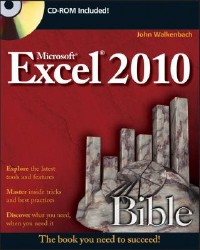
简介
"An authoritative reference, this perennial bestseller proves itself indispensable no matter your level of skill, from Excel beginners and intermediate users to power users and potential power users everywhere. Fully updated for the new release, this latest edition provides comprehensive, soup-to-nuts coverage, delivering over 900 pages of Excel tips, tricks, and techniques you won't find anywhere else. Excel 2010 Bible serves as an excellent resource on all things Excel!"--Resource description page.
目录
About the Author 9
About the Technical Editor 11
Credits 12
Contents 13
Acknowledgments 41
Introduction 42
Is This Book for You? 42
Software Versions 42
Conventions This Book Uses 42
What the Icons Mean 44
How This Book Is Organized 45
How to Use This Book 45
What\u2019s on the Companion CD 46
Part I: Getting Started with Excel 47
Chapter 1: Introducing Excel 49
What Is Excel Good For? 49
What\u2019s New in Excel 2010? 50
Understanding Workbooks and Worksheets 51
Moving around a Worksheet 54
Introducing the Ribbon 57
Using Shortcut Menus 62
Customizing Your Quick Access Toolbar 63
Working with Dialog Boxes 65
Using the Task Pane 68
Creating Your First Excel Worksheet 68
Chapter 2: Entering and Editing Worksheet Data 75
Exploring the Types of Data You Can Use 75
Entering Text and Values into Your Worksheets 78
Entering Dates and Times into Your Worksheets 79
Modifying Cell Contents 80
Applying Number Formatting 88
Chapter 3: Essential Worksheet Operations 95
Learning the Fundamentals of Excel Worksheets 95
Controlling the Worksheet View 104
Working with Rows and Columns 111
Chapter 4: Working with Cells and Ranges 115
Understanding Cells and Ranges 115
Copying or Moving Ranges 124
Using Names to Work with Ranges 135
Adding Comments to Cells 140
Chapter 5: Introducing Tables 145
What Is a Table? 145
Creating a Table 148
Changing the Look of a Table 149
Working with Tables 151
Chapter 6: Worksheet Formatting 161
Getting to Know the Formatting Tools 161
Using Different Fonts to Format Your Worksheet 165
Changing Text Alignment 168
Using Colors and Shading 173
Adding Borders and Lines 174
Adding a Background Image to a Worksheet 176
Using Named Styles for Easier Formatting 177
Understanding Document Themes 181
Chapter 7: Understanding Excel Files 187
Creating a New Workbook 187
Opening an Existing Workbook 189
Saving a Workbook 193
Using AutoRecover 195
Specifying a Password 196
Organizing Your Files 197
Other Workbook Info Options 199
Closing Workbooks 202
Safeguarding Your Work 203
Excel File Compatibility 203
Chapter 8: Using and Creating Templates 207
Exploring Excel Templates 207
Understanding Custom Excel Templates 211
Chapter 9: Printing Your Work 217
Printing with One Click 217
Changing Your Page View 218
Adjusting Common Page Setup Settings 223
Adding a Header or Footer to Your Reports 231
Copying Page Setup Settings across Sheets 234
Preventing Certain Cells from Being Printed 234
Preventing Objects from Being Printed 235
Creating Custom Views of Your Worksheet 236
Part II: Working with Formulas and Functions 239
Chapter 10: Introducing Formulas and Functions 241
Understanding Formula Basics 241
Entering Formulas into Your Worksheets 248
Editing Formulas 255
Using Cell References in Formulas 255
Using Formulas in Tables 260
Correcting Common Formula Errors 264
Using Advanced Naming Techniques 268
Tips for Working with Formulas 273
Chapter 11: Creating Formulas That Manipulate Text 275
A Few Words about Text 275
Text Functions 276
Advanced Text Formulas 289
Chapter 12: Working with Dates and Times 295
How Excel Handles Dates and Times 295
Date-Related Worksheet Functions 304
Time-Related Functions 318
Chapter 13: Creating Formulas That Count and Sum 327
Counting and Summing Worksheet Cells 327
Basic Counting Formulas 329
Advanced Counting Formulas 332
Summing Formulas 345
Conditional Sums Using a Single Criterion 349
Conditional Sums Using Multiple Criteria 351
Chapter 14: Creating Formulas That Look Up Values 355
Introducing Lookup Formulas 355
Functions Relevant to Lookups 356
Basic Lookup Formulas 358
Specialized Lookup Formulas 364
Chapter 15: Creating Formulas for Financial Applications 375
The Time Value of Money 375
Loan Calculations 376
Investment Calculations 389
Depreciation Calculations 396
Chapter 16: Introducing Array Formulas 401
Understanding Array Formulas 401
Understanding the Dimensions of an Array 406
Naming Array Constants 408
Working with Array Formulas 410
Using Multicell Array Formulas 412
Using Single-Cell Array Formulas 417
Chapter 17: Performing Magic with Array Formulas 425
Working with Single-Cell Array Formulas 425
Working with Multicell Array Formulas 440
Part III: Creating Charts and Graphics 447
Chapter 18: Getting Started Making Charts 449
What Is a Chart? 449
Understanding How Excel Handles Charts 450
Creating a Chart 454
Hands On: Creating and Customizing a Chart 454
Working with Charts 459
Understanding Chart Types 463
Learning More 482
Chapter 19: Learning Advanced Charting 483
Selecting Chart Elements 483
User Interface Choices for Modifying Chart Elements 487
Modifying the Chart Area 489
Modifying the Plot Area 490
Working with Chart Titles 491
Working with a Legend 492
Working with Gridlines 494
Modifying the Axes 494
Working with Data Series 501
Creating Chart Templates 515
Learning Some Chart-Making Tricks 516
Chapter 20: Visualizing Data Using Conditional Formatting 527
About Conditional Formatting 527
Specifying Conditional Formatting 529
Conditional Formats That Use Graphics 531
Creating Formula-Based Rules 540
Working with Conditional Formats 545
Chapter 21: Creating Sparkline Graphics 549
Sparkline Types 550
Creating Sparklines 551
Customizing Sparklines 553
Specifying a Date Axis 558
Auto-Updating Sparklines 559
Displaying a Sparkline for a Dynamic Range 560
Chapter 22: Enhancing Your Work with Pictures and Drawings 563
Using Shapes 563
Using SmartArt 571
Using WordArt 576
Working with Other Graphic Types 577
Using the Equation Editor 581
Part IV: Using Advanced Excel Features 585
Chapter 23: Customizing the Excel User Interface 587
Customizing the Quick Access Toolbar 587
Customizing the Ribbon 592
Chapter 24: Using Custom Number Formats 597
About Number Formatting 597
Creating a Custom Number Format 601
Custom Number Format Examples 606
Chapter 25: Using Data Validation 615
About Data Validation 615
Specifying Validation Criteria 616
Types of Validation Criteria You Can Apply 617
Creating a Drop-Down List 619
Using Formulas for Data Validation Rules 620
Understanding Cell References 620
Data Validation Formula Examples 621
Chapter 26: Creating and Using Worksheet Outlines 627
Introducing Worksheet Outlines 627
Creating an Outline 630
Working with Outlines 633
Chapter 27: Linking and Consolidating Worksheets 635
Linking Workbooks 635
Creating External Reference Formulas 636
Working with External Reference Formulas 638
Avoiding Potential Problems with External Reference Formulas 641
Consolidating Worksheets 643
Chapter 28: Excel and the Internet 651
Understanding How Excel Uses HTML 651
Understanding the Different Web Formats 652
Opening an HTML File 655
Working with Hyperlinks 656
Using Web Queries 658
Other Internet-Related Features 660
Chapter 29: Sharing Data with Other Office Applications 661
Copying and Pasting 661
Copying from Excel to Word 663
Embedding Objects in a Worksheet 668
Embedding an Excel Workbook in a Word Document 670
Chapter 30: Using Excel in a Workgroup 673
Using Excel on a Network 673
Understanding File Reservations 674
Sharing Workbooks 675
Tracking Workbook Changes 679
Chapter 31: Protecting Your Work 683
Types of Protection 683
Protecting a Worksheet 684
Protecting a Workbook 687
VB Project Protection 690
Related Topics 691
Chapter 32: Making Your Worksheets Error-Free 695
Finding and Correcting Formula Errors 695
Using Excel Auditing Tools 707
Searching and Replacing 714
Spell Checking Your Worksheets 717
Using AutoCorrect 718
Part V: Analyzing Data with Excel 721
Chapter 33: Getting Data from External Database Files 723
Understanding External Database Files 723
Importing Access Tables 725
Retrieving Data with Query: An Example 726
Working with Data Returned by Query 734
Using Query without the Wizard 736
Learning More about Query 739
Chapter 34: Introducing Pivot Tables 741
About Pivot Tables 741
Creating a Pivot Table 747
More Pivot Table Examples 754
Learning More 760
Chapter 35: Analyzing Data with Pivot Tables 761
Working with Non-Numeric Data 761
Grouping Pivot Table Items 763
Creating a Frequency Distribution 768
Creating a Calculated Field or Calculated Item 770
Filtering Pivot Tables with Slicers 777
Referencing Cells within a Pivot Table 779
Creating Pivot Charts 781
Another Pivot Table Example 785
Producing a Report with a Pivot Table 788
Chapter 36: Performing Spreadsheet What-If Analysis 791
A What-If Example 791
Types of What-If Analyses 793
Manual What-If Analysis 793
Creating Data Tables 793
Using Scenario Manager 799
Chapter 37: Analyzing Data Using Goal Seeking and Solver 807
What-If Analysis, in Reverse 807
Single-Cell Goal Seeking 808
Introducing Solver 810
Solver Examples 817
Chapter 38: Analyzing Data with the Analysis ToolPak 827
The Analysis ToolPak: An Overview 827
Installing the Analysis ToolPak Add-in 828
Using the Analysis Tools 829
Introducing the Analysis ToolPak Tools 829
Part VI: Programming Excel with VBA 839
Chapter 39: Introducing Visual Basic for Applications 841
Introducing VBA Macros 841
Displaying the Developer Tab 842
About Macro Security 843
Saving Workbooks That Contain Macros 844
Two Types of VBA Macros 845
Creating VBA Macros 848
Learning More 867
Chapter 40: Creating Custom Worksheet Functions 869
Overview of VBA Functions 869
An Introductory Example 870
About Function Procedures 872
Executing Function Procedures 873
Function Procedure Arguments 874
Debugging Custom Functions 879
Inserting Custom Functions 880
Learning More 882
Chapter 41: Creating UserForms 883
Why Create UserForms? 883
UserForm Alternatives 884
Creating UserForms: An Overview 888
A UserForm Example 892
Another UserForm Example 896
More on Creating UserForms 902
Learning More 903
Chapter 42: Using UserForm Controls in a Worksheet 905
Why Use Controls on a Worksheet? 905
Using Controls 907
Reviewing the Available ActiveX Controls 912
Chapter 43: Working with Excel Events 919
Understanding Events 919
Entering Event-Handler VBA Code 920
Using Workbook-Level Events 921
Working with Worksheet Events 925
Using Non-Object Events 929
Chapter 44: VBA Examples 933
Working with Ranges 933
Working with Workbooks 942
Working with Charts 943
VBA Speed Tips 945
Chapter 45: Creating Custom Excel Add-Ins 949
What Is an Add-In? 949
Working with Add-Ins 950
Why Create Add-Ins? 952
Creating Add-Ins 953
An Add-In Example 954
Part VII: Appendixes 961
Appendix A: Worksheet Function Reference 963
Appendix B: What\u2019s on the CD-ROM 979
System Requirements 979
Using the CD 979
What\u2019s on the CD 980
Troubleshooting 988
Appendix C: Additional Excel Resources 989
The Excel Help System 989
Microsoft Technical Support 990
Internet Newsgroups 991
Internet Web sites 993
Appendix D: Excel Shortcut Keys 995
Index 1003
End-User License Agreement 1053
About the Technical Editor 11
Credits 12
Contents 13
Acknowledgments 41
Introduction 42
Is This Book for You? 42
Software Versions 42
Conventions This Book Uses 42
What the Icons Mean 44
How This Book Is Organized 45
How to Use This Book 45
What\u2019s on the Companion CD 46
Part I: Getting Started with Excel 47
Chapter 1: Introducing Excel 49
What Is Excel Good For? 49
What\u2019s New in Excel 2010? 50
Understanding Workbooks and Worksheets 51
Moving around a Worksheet 54
Introducing the Ribbon 57
Using Shortcut Menus 62
Customizing Your Quick Access Toolbar 63
Working with Dialog Boxes 65
Using the Task Pane 68
Creating Your First Excel Worksheet 68
Chapter 2: Entering and Editing Worksheet Data 75
Exploring the Types of Data You Can Use 75
Entering Text and Values into Your Worksheets 78
Entering Dates and Times into Your Worksheets 79
Modifying Cell Contents 80
Applying Number Formatting 88
Chapter 3: Essential Worksheet Operations 95
Learning the Fundamentals of Excel Worksheets 95
Controlling the Worksheet View 104
Working with Rows and Columns 111
Chapter 4: Working with Cells and Ranges 115
Understanding Cells and Ranges 115
Copying or Moving Ranges 124
Using Names to Work with Ranges 135
Adding Comments to Cells 140
Chapter 5: Introducing Tables 145
What Is a Table? 145
Creating a Table 148
Changing the Look of a Table 149
Working with Tables 151
Chapter 6: Worksheet Formatting 161
Getting to Know the Formatting Tools 161
Using Different Fonts to Format Your Worksheet 165
Changing Text Alignment 168
Using Colors and Shading 173
Adding Borders and Lines 174
Adding a Background Image to a Worksheet 176
Using Named Styles for Easier Formatting 177
Understanding Document Themes 181
Chapter 7: Understanding Excel Files 187
Creating a New Workbook 187
Opening an Existing Workbook 189
Saving a Workbook 193
Using AutoRecover 195
Specifying a Password 196
Organizing Your Files 197
Other Workbook Info Options 199
Closing Workbooks 202
Safeguarding Your Work 203
Excel File Compatibility 203
Chapter 8: Using and Creating Templates 207
Exploring Excel Templates 207
Understanding Custom Excel Templates 211
Chapter 9: Printing Your Work 217
Printing with One Click 217
Changing Your Page View 218
Adjusting Common Page Setup Settings 223
Adding a Header or Footer to Your Reports 231
Copying Page Setup Settings across Sheets 234
Preventing Certain Cells from Being Printed 234
Preventing Objects from Being Printed 235
Creating Custom Views of Your Worksheet 236
Part II: Working with Formulas and Functions 239
Chapter 10: Introducing Formulas and Functions 241
Understanding Formula Basics 241
Entering Formulas into Your Worksheets 248
Editing Formulas 255
Using Cell References in Formulas 255
Using Formulas in Tables 260
Correcting Common Formula Errors 264
Using Advanced Naming Techniques 268
Tips for Working with Formulas 273
Chapter 11: Creating Formulas That Manipulate Text 275
A Few Words about Text 275
Text Functions 276
Advanced Text Formulas 289
Chapter 12: Working with Dates and Times 295
How Excel Handles Dates and Times 295
Date-Related Worksheet Functions 304
Time-Related Functions 318
Chapter 13: Creating Formulas That Count and Sum 327
Counting and Summing Worksheet Cells 327
Basic Counting Formulas 329
Advanced Counting Formulas 332
Summing Formulas 345
Conditional Sums Using a Single Criterion 349
Conditional Sums Using Multiple Criteria 351
Chapter 14: Creating Formulas That Look Up Values 355
Introducing Lookup Formulas 355
Functions Relevant to Lookups 356
Basic Lookup Formulas 358
Specialized Lookup Formulas 364
Chapter 15: Creating Formulas for Financial Applications 375
The Time Value of Money 375
Loan Calculations 376
Investment Calculations 389
Depreciation Calculations 396
Chapter 16: Introducing Array Formulas 401
Understanding Array Formulas 401
Understanding the Dimensions of an Array 406
Naming Array Constants 408
Working with Array Formulas 410
Using Multicell Array Formulas 412
Using Single-Cell Array Formulas 417
Chapter 17: Performing Magic with Array Formulas 425
Working with Single-Cell Array Formulas 425
Working with Multicell Array Formulas 440
Part III: Creating Charts and Graphics 447
Chapter 18: Getting Started Making Charts 449
What Is a Chart? 449
Understanding How Excel Handles Charts 450
Creating a Chart 454
Hands On: Creating and Customizing a Chart 454
Working with Charts 459
Understanding Chart Types 463
Learning More 482
Chapter 19: Learning Advanced Charting 483
Selecting Chart Elements 483
User Interface Choices for Modifying Chart Elements 487
Modifying the Chart Area 489
Modifying the Plot Area 490
Working with Chart Titles 491
Working with a Legend 492
Working with Gridlines 494
Modifying the Axes 494
Working with Data Series 501
Creating Chart Templates 515
Learning Some Chart-Making Tricks 516
Chapter 20: Visualizing Data Using Conditional Formatting 527
About Conditional Formatting 527
Specifying Conditional Formatting 529
Conditional Formats That Use Graphics 531
Creating Formula-Based Rules 540
Working with Conditional Formats 545
Chapter 21: Creating Sparkline Graphics 549
Sparkline Types 550
Creating Sparklines 551
Customizing Sparklines 553
Specifying a Date Axis 558
Auto-Updating Sparklines 559
Displaying a Sparkline for a Dynamic Range 560
Chapter 22: Enhancing Your Work with Pictures and Drawings 563
Using Shapes 563
Using SmartArt 571
Using WordArt 576
Working with Other Graphic Types 577
Using the Equation Editor 581
Part IV: Using Advanced Excel Features 585
Chapter 23: Customizing the Excel User Interface 587
Customizing the Quick Access Toolbar 587
Customizing the Ribbon 592
Chapter 24: Using Custom Number Formats 597
About Number Formatting 597
Creating a Custom Number Format 601
Custom Number Format Examples 606
Chapter 25: Using Data Validation 615
About Data Validation 615
Specifying Validation Criteria 616
Types of Validation Criteria You Can Apply 617
Creating a Drop-Down List 619
Using Formulas for Data Validation Rules 620
Understanding Cell References 620
Data Validation Formula Examples 621
Chapter 26: Creating and Using Worksheet Outlines 627
Introducing Worksheet Outlines 627
Creating an Outline 630
Working with Outlines 633
Chapter 27: Linking and Consolidating Worksheets 635
Linking Workbooks 635
Creating External Reference Formulas 636
Working with External Reference Formulas 638
Avoiding Potential Problems with External Reference Formulas 641
Consolidating Worksheets 643
Chapter 28: Excel and the Internet 651
Understanding How Excel Uses HTML 651
Understanding the Different Web Formats 652
Opening an HTML File 655
Working with Hyperlinks 656
Using Web Queries 658
Other Internet-Related Features 660
Chapter 29: Sharing Data with Other Office Applications 661
Copying and Pasting 661
Copying from Excel to Word 663
Embedding Objects in a Worksheet 668
Embedding an Excel Workbook in a Word Document 670
Chapter 30: Using Excel in a Workgroup 673
Using Excel on a Network 673
Understanding File Reservations 674
Sharing Workbooks 675
Tracking Workbook Changes 679
Chapter 31: Protecting Your Work 683
Types of Protection 683
Protecting a Worksheet 684
Protecting a Workbook 687
VB Project Protection 690
Related Topics 691
Chapter 32: Making Your Worksheets Error-Free 695
Finding and Correcting Formula Errors 695
Using Excel Auditing Tools 707
Searching and Replacing 714
Spell Checking Your Worksheets 717
Using AutoCorrect 718
Part V: Analyzing Data with Excel 721
Chapter 33: Getting Data from External Database Files 723
Understanding External Database Files 723
Importing Access Tables 725
Retrieving Data with Query: An Example 726
Working with Data Returned by Query 734
Using Query without the Wizard 736
Learning More about Query 739
Chapter 34: Introducing Pivot Tables 741
About Pivot Tables 741
Creating a Pivot Table 747
More Pivot Table Examples 754
Learning More 760
Chapter 35: Analyzing Data with Pivot Tables 761
Working with Non-Numeric Data 761
Grouping Pivot Table Items 763
Creating a Frequency Distribution 768
Creating a Calculated Field or Calculated Item 770
Filtering Pivot Tables with Slicers 777
Referencing Cells within a Pivot Table 779
Creating Pivot Charts 781
Another Pivot Table Example 785
Producing a Report with a Pivot Table 788
Chapter 36: Performing Spreadsheet What-If Analysis 791
A What-If Example 791
Types of What-If Analyses 793
Manual What-If Analysis 793
Creating Data Tables 793
Using Scenario Manager 799
Chapter 37: Analyzing Data Using Goal Seeking and Solver 807
What-If Analysis, in Reverse 807
Single-Cell Goal Seeking 808
Introducing Solver 810
Solver Examples 817
Chapter 38: Analyzing Data with the Analysis ToolPak 827
The Analysis ToolPak: An Overview 827
Installing the Analysis ToolPak Add-in 828
Using the Analysis Tools 829
Introducing the Analysis ToolPak Tools 829
Part VI: Programming Excel with VBA 839
Chapter 39: Introducing Visual Basic for Applications 841
Introducing VBA Macros 841
Displaying the Developer Tab 842
About Macro Security 843
Saving Workbooks That Contain Macros 844
Two Types of VBA Macros 845
Creating VBA Macros 848
Learning More 867
Chapter 40: Creating Custom Worksheet Functions 869
Overview of VBA Functions 869
An Introductory Example 870
About Function Procedures 872
Executing Function Procedures 873
Function Procedure Arguments 874
Debugging Custom Functions 879
Inserting Custom Functions 880
Learning More 882
Chapter 41: Creating UserForms 883
Why Create UserForms? 883
UserForm Alternatives 884
Creating UserForms: An Overview 888
A UserForm Example 892
Another UserForm Example 896
More on Creating UserForms 902
Learning More 903
Chapter 42: Using UserForm Controls in a Worksheet 905
Why Use Controls on a Worksheet? 905
Using Controls 907
Reviewing the Available ActiveX Controls 912
Chapter 43: Working with Excel Events 919
Understanding Events 919
Entering Event-Handler VBA Code 920
Using Workbook-Level Events 921
Working with Worksheet Events 925
Using Non-Object Events 929
Chapter 44: VBA Examples 933
Working with Ranges 933
Working with Workbooks 942
Working with Charts 943
VBA Speed Tips 945
Chapter 45: Creating Custom Excel Add-Ins 949
What Is an Add-In? 949
Working with Add-Ins 950
Why Create Add-Ins? 952
Creating Add-Ins 953
An Add-In Example 954
Part VII: Appendixes 961
Appendix A: Worksheet Function Reference 963
Appendix B: What\u2019s on the CD-ROM 979
System Requirements 979
Using the CD 979
What\u2019s on the CD 980
Troubleshooting 988
Appendix C: Additional Excel Resources 989
The Excel Help System 989
Microsoft Technical Support 990
Internet Newsgroups 991
Internet Web sites 993
Appendix D: Excel Shortcut Keys 995
Index 1003
End-User License Agreement 1053
- 名称
- 类型
- 大小
光盘服务联系方式: 020-38250260 客服QQ:4006604884
云图客服:
用户发送的提问,这种方式就需要有位在线客服来回答用户的问题,这种 就属于对话式的,问题是这种提问是否需要用户登录才能提问
Video Player
×
Audio Player
×
pdf Player
×
亲爱的云图用户,
光盘内的文件都可以直接点击浏览哦
无需下载,在线查阅资料!
